

The best soccer camera to record your team gets you the best quality video for the lowest cost for your players/coaches and has the most storage/longest battery life. Your best sports camera records all the sports you need, is easy to setup and simple to use, works reliably and has good support when you have recording problems.
For travel sports livestreaming is important, the ability to record in wind/rain/snow/heat in climates you travel to, and game access for parents, players, coaches, and fans. Lastly your options for analyzing, clipping, hosting, sharing the games once they’re recorded and the ability to find a plan that fits the size of your team/club/school and schedule of your team.
Soccer Camera Reviews
 Over the last few years we’ve been recording with all the ai soccer cameras we could get our hands on so we could learn the pros and cons and put together a soccer camera comparison for parents, coaches, clubs, and schools.
Camera companies weren’t eager to give or lend us a camera which was expensive but did give us a better perspective of what the team experience would be. We had to purchase each system and pay for any related plans so it took a while (and a chunk of cash) to get them all to the field.
Many of them we pre-ordered before they were available because they were new systems and just coming out for the first time. Most of them experienced some delays shipping and all had bugs and flaws when they first came out. It’s been interesting to see how the different companies reacted and handled the issues and delays.
Soccer Camera Types
 As we’ve recorded soccer games with the various cameras we’ve noticed that the different cameras generally fall into two categories. One type is an “all in one” soccer camera system with the lenses and storage and AI all built in (including cloud uploads).
The other is more of “bring your own camera” tracking system that takes an existing Go-Pro, phone, or camcorders and allows it to track the action and stores the footage on external media like SD cards.
This picture might give you a visual, with the “all in one” robot represented on the left and the “bring your own camera” robot on the right.
All in One Camera
- Self contained unit
- Fewer moving parts
- Simplified interface
- Higher price tag
Bring Your Own Camera
- Assembled from a variety of separate components
- Parts can be swapped out
- Requires more effort to assemble and use
- Lower price tag
 We’ll go into this more below but as a summary the soccer camera systems are an all-in-one unit that are easier to transport, easier to use, but are also more expensive. The bring your own camera systems are lower cost but in general require more work from you to get the footage captured, uploaded, stored, shared. We’ll take a look at both kinds and which might be the best soccer camera for recording games for your team.
Recording Soccer Games (Johnny Cash Style)
We’ve dragged these cameras from Chicago to St Louis. From Wichita to Omaha. From Denver to Des Moines. From Milwaukee to Tulsa. From Kansas City to Phoenix, Orlando, Dallas, and LA. Feels like we’ve been everywhere!
These soccer camera reviews come after two years of testing, hundreds of hours of recording/learning/cursing, and many thousands of dollars invested in cameras and plans. It’s one thing to read the camera specs or talk to a rep from the company and it’s another to see how the camera works “in the wild”. At the field, on the road, in the rain, in the cold, at the stadium, on your phone, on your network, on the hotel wi-fi, at film reviews, for highlight videos, when you forget to charge, when it falls off the tripod, etc. I have to tip my hat to the companies that make the cameras, they’ve built some cool technology to work in all these situations. Just a few years back your only option was your iPhone or the Hi-Pod system and now the challenge is choosing the best camera for your team from all the options.
I also want to say thanks to my family who has put up with my camera project. They tolerated me filling the car with equipment, lugging 4-5 camera and tripods to one field, and patiently (most of the time) waited for me as I took them down after the games, and then helped me haul it all back to the car.
I know these overviews won’t be perfect so if you see something that’s off please let me know. Hopefully this will be helpful to the many sports parents and coaches out there looking for the best soccer camera for their team.
Soccer Camera vs Soccer Camera
 We were able to record soccer games with most of the cameras listed below with the exception of Hudl, Reeplayer, and Spiideo. We’ll have a chance to record our games with Hudl and Reeplayer this coming season so that should almost round it out. As new soccer cameras launch we’ll add them to the list, if there’s one you’re using that isn’t covered here please let us know.
The order we go through the cameras isn’t significant, I went with the order they show up in the camera collage photo. We’ll start with the all in one camera systems and then move on to the other category.
If you’ve seen some of my Veo vs Trace vs Pixellot videos on YouTube you know that I’ve been working on a detailed sports camera comparison based on all the criteria listed in the beginning for a while. The tricky thing is that it’s like comparing apples to oranges and the cameras are releasing new versions and features.
It takes quite a bit of time to record the soccer game and then pull in the same moment from the match from each camera and show them side by side. So when trying to put together a head to head soccer camera review for all the systems I’ve been constantly behind. In the meantime we get a lot of coaches and parents asking for advice so I put together this soccer camera overview that doesn’t actually show footage but gives the details on each camera.
Comparing Soccer Cameras
 How I would approach finding the best camera for recording soccer for your club or school is to ask coaches or parents how they want to use the footage and focus most heavily on the features that are important to them. If you try and compare every feature of each camera the search will get more complicated and drawn out.
You can start with your top 3-4 criteria ex (price, team access, livestream ability) or whatever is most important to your team. You can rule out a group of cameras based on the most important features and once you have it narrowed down to a few you can dive into a more detailed side by side comparison.
Camera research warning – As you research the best soccer camera for your team you’ll definitely run across Facebook groups, Reddit threads, and forum posts about each ai sports camera. I’ve spent a lot of time reading these over the last few years and what I’ve noticed is that the loudest voices tend to be the most unhappy camera owners.
It can be a little discouraging as you travel the groups for each sport camera because you’ll come away with a list of issues and frustrations. However, it is helpful to get a heads up from actual users about which issues they’re experiencing, really valuable insight as you research cameras. One thing that works well, if you see a camera owner who posted about a specific problem, reach out them individually for more detail on the issue and also how they resolved it.
Camera Versions – Keeping up with the various versions of cameras and features gets more challenging as more cameras are released. If you read something below that is old information about a camera please let us know so we can update it.
The ai sports cameras we’ll take a look at are:
- Veo
- Trace
- ReePlayer
- Hudl Focus Flex
- Pixellot Air
- Spiideo
- Soloshot
- SeeUsPlay
- Pix4Team
- XBot Chamelon
- ActionStitch
- CameraPan
- BallerCam – coming soon
- XBot Falcon – coming soon
- Veo Go – coming soon
Automated Sports Camera Questions
Here are a few frequently asked questions that don’t make sense to answer for each camera so I’ll cover them here first.
Why is there an Annual Fee?
The question of the annual fee comes up every time for all of the all-in-one camera systems. If you know right away that the cost of a plan added to the price of the camera purchase won’t work for your team then you can save yourself time and scroll down to the second part of this sports camera review to the “bring your own camera” section.
But what is the deal with a camera subscription? Why do you have to pay for a plan? A good way to understand that cost is to ask what the “all in one camera systems” give you that the “bring your own camera system” don’t include? You get a combination of video splice/upload/management, game backups, analysis, coaching tools, hosting, and sharing.
The costs of the technology necessary to make those things possible is what adds a subscription to the “all in one cameras”. The good news is there are other options if that plan cost doesn’t work for your team.
How do AI sports camera work?
All the systems work best when you put them at mid-field and have them raised on a tripod at least 12 ft. You use an app on your phone/tablet to start and stop the recording. Some of them have a preview so you can see what the camera sees before you start it.
Make sure the batteries are charged and the camera is secured, so it doesn’t blow over or get knocked over. When you record the footage is stored either on a hard drive built into the camera or on an SD card you put in the camera. They all use software to track the ball as it moves around the field. A few manually move the camera to follow the action but most just record the whole field and then use software to analyze the footage and digitally pan and zoom the image.
After the game the footage is uploaded into the cloud (either automatically with all-in-one systems, by you for cameras with an SD card, or if its stored on your phone it may not be need to be uploaded).
Can I buy a used sports camera?
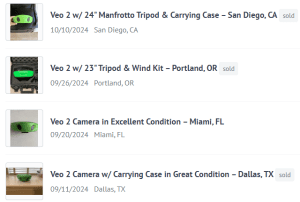 You can buy a used ai camera in some situations. If the camera system uses a lease model then you can’t because you don’t own the camera. When the year or plan time is up you return the equipment.
If you have a camera that uses a plan some companies may not let you transfer ownership of the plan if you sell the camera which makes it hard to sell, unless the plan is expired. If they do let you transfer the plan or it’s expired then you can buy/sell a used camera.
If you have one of the soccer tracking systems that’s just the camera and no plan then you can definitely buy a used camera or sell yours once you’re done with it. There are a few things you want to know when buying a used camera but the most important one is to get proof the seller is the actual owner of the camera. Here’s a guide on how to sell a used camera and we have a guide for buying a used one if you’re interested.
Does the whole club/district need to use the same camera?
If you have multiple teams at your school or club they don’t all have to use the same camera system. Getting people to agree on one system can be hard. Different sports might be better suited with different cameras. Different teams and age groups have different requirements, needs, and budgets.
However, if you buy multiple of the same kind you could get better pricing if you negotiate and it is easier for the coaches/managers/directors to access all the footage and train the team if every system is the same.
How can I compare cameras?
A good place to start is with the camera company you’re interested in. They usually know the latest plans and features and maybe even what’s coming in the near future. The one challenge I hear from families is that they don’t have time to call and chat with each of the camera companies separately. If you have questions about a camera or a number of cameras you can ask below and we’ll do our best to help get it answered.
Now that we’ve gone over some frequently asked questions let’s get started on what we’ve learned about specific cameras. I tried to follow the same general format for each camera system to make it easier to compare.
Plans – Subscription options, if required.
Game Recording – Process of recording a game & getting footage.
Features – What makes the camera stand out for certain situations.
Highs & Lows – Some of the highlights & also things that could use improvement.
Sports Recording – Sports we’ve used the camera for and conditions we recorded in.
Pricing – Since pricing will change over time we tried not to include specific numbers but rather the costs relative to other systems.
Veo Camera
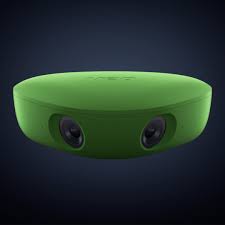
The Veo camera is a good place to start because I have the most experience with this system. We’ve been recording soccer games with Veo since 2019 and I’ve used all the versions on the camera, currently up to Veo cam 3.
Camera Plans
As Veo has evolved over the years they’ve created different types of plans to fit the needs of different teams (credit to their team to listening to feedback from users like me and other teams & clubs). Like most, or all, of the all-in-one ai camera systems Veo has a monthly or annual fee. The different plans they offer have different prices based on the number of family members, players/teams that need to access the footage. They also let you subscribe for 1, 6, 12, or 24 months.
The different level of plans provide better options for teams but all the choices do make it more challenging to figure out the right plan for you on the pricing page. Veo has been improving the plan page over time but it’s a lot of info to squeeze into one view. I’ve spent a lot of time talking to coaches and parents who want to understand the differences between the plans and what their best option would be. If you have questions feel free to email or call.
Game Recording
During the game you can review what has been recorded after 45 seconds with the Instant Playback feature in the app. After the game you upload the footage into the Veo cloud, it gets processed, and you can watch, clip, download the game in your browser at app.veo.co .
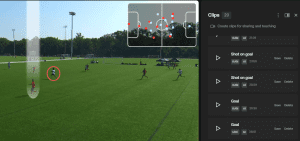 In the Veo dashboard you can filter by the different events in the game to review or download, leave comments for players on the clips, and create markup on the screen.
Each of the two lenses captures half the field. The software splices the two lenses together for one view and also will zoom and pan to follow the ball. The software also creates automatic clips of parts of the game like start/end of half and goals. If you are using some of the features mentioned below the software also analyzes the game for stats and player tracking.
If you were using Veo Live to watch a stream you can cast that to a TV to watch it back right after the game. Each version of the camera has improved the resolution and quality of game video. You can see some recent examples of Veo 2 vs Veo 3
If the opponent doesn’t have a camera you can share a copy of the game with them. You can decide whether you want the game to be visible to just your team or you can make it public so anyone can watch it.
Veo Features
Veo setup the recording plans so if you only want to record the games you don’t have to add additional features, which come with a cost. You can add on a few features depending on what you need from the footage:
Game Analytics
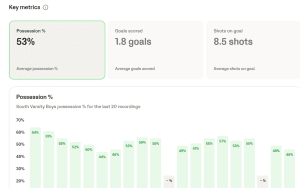 Veo Analytics gives you an Analytics Studio menu that can give you both “Team Stats” and “Player Stats”. You need to setup the players first (add name and number) and then you can get individual stats on each player like matches, starts, attempts, goals, shots. The team stats aggregates possession and goals across games and also shows possession, shot maps, and pass location.
I imagine analytics are used most often by coaches to look for insights into how their players and team are playing and where they can improve. Also parents who know the game and want to give their players a look into where they can get better.
Game Livestream
 Veo Livestream allows you to stream your games to fans who can’t be at the match to watch. We’ve been using this feature heavily since it came out because we have kids that play around the MidWest and occasionally the country. Every game we have parents, grandparents, past players (from high school), other relatives, and other club coaches and directors tuning in to watch the games.
When it first came out a few years back I would tell families that there might be a livestream depending on the service but now it’s gotten good enough that many parents and relatives depend on our games being broadcast as we travel around for ECNL and GA games.
One game a player bumped the camera subbing in on a tight sideline. I hadn’t tightened one of the knobs to hold the main pole in place and it turned partway to the left . Shortly after I had text messages from a few fans that the livestream was off. Our fans are very appreciative of the chance to watch the games when they can’t make it.
Player Spotlight
Player specific highlights is a new feature that Veo added recently. I haven’t had a chance to try it out yet but will over the coming season. The main benefit is that you can get clips of the times your player touches the ball. Multiple different camera systems have implemented this feature and I think they’ve all discovered how tricky it can be to use AI to detect every touch of the ball for every player.
So the player tracking isn’t perfect but its awfully nice to have. To give some perspective, before Player Spotlight in order to track all the touches you could watch the game at x8 speed and pause every time a certain kid touched the ball to create a clip. So Veo player tracking has been a much anticipated feature, looking forward to trying it out.
Highs & Lows
The biggest complaint I’ve heard from the teams using the Veo camera is around customer support responses. When I first started using the system the support was all through email. Now they’ve added the ability to call in with questions as well but I’ve still relied on opening tickets. This video shows the steps you take if your camera isn’t working – Veo support steps. I do hear from teams on Friday afternoon who just got their camera and are trying to activate it for the first time before their weekend games. Typically they’re a little panicked if they ran into trouble so my standard advice is not to wait until the day of or day before your games to setup your new camera.
The best part of using Veo for me is probably a tie between the ability to use it as a coaching tool and also the ability to livestream. The ability to create clips and make notes right in the Veo site has been really helpful for me as a soccer dad, helping my kids improve their game. Their coaches used the video as a learning tool, both high school and club do film review from the game. But I really like being able to clip teachable moments for my kids and go over them the next week.
I suppose it’s actually a 3 way tie for the best feature since it has also been really helpful having the games and clips in Veo so my son could create recruiting videos as he applied to college soccer programs. During high school season it made my unofficial job as video guy for the team easier so I could create a few highlight videos a week. I did it enough I put together a sports parent guide on how to make a highlight video. If you have questions you can always email me, ben@easysportsvideo.com .
If you ask our team they would say the livestreaming, it’s been fantastic for the families of the teams our 3 kids play on. You probably understand how often only one parent gets to travel with the team, or sometimes neither parent. With 3 players in season it’s so nice being able to livestream the games so our immediate family, our extended family, and the families of the team can watch the kids play. Recently my parents were overseas on a mission trip and still got to watch our son score a hat trick and beat their rival high school team. For our family the livestream option has been worth every penny. If it would be the same for your family I put together a playlist of videos on what I’ve learned about livestreaming soccer.
Sports Recording
We’ve used the Veo for recreational, competitive, high school, collegiate, and professional soccer teams. Our cameras have been used to record soccer, basketball, volleyball, lacrosse, rugby, and football. I know the camera works for other sports as well but those are the ones we’ve tested successfully.
I’ve recorded in the driving rain and heavy winds (with sandbags) and also the heat of July and August. The latest version of the Veo handles the rain (new lens covers), wind (mic mufflers), and heat (new cooling system) the best.
Camera Pricing
I wanted to give you an idea on the relative costs for each system but the pricing for the various systems change over time. It took me a while to put this camera review roundup together and in that time the prices had changed for some systems before I had even published it. I don’t want to have incorrect pricing published for the camera systems, that could actually create confusion for parents/coaches who are researching and might see price differences here and on the vendor page.
Update: A new model of the Veo camera has released that is called Veo Go. Here is a look at our Veo Go review video.
So if you want the latest pricing just request it here and you can get it over email
Next Steps
Here is our Veo Camera 3 Review to check out the latest version of the camera. There are a few ways you can get started:
- Rent a Veo to see if you like it
- Buy a used Veo
- Get a discount on a new Veo
Trace Camera
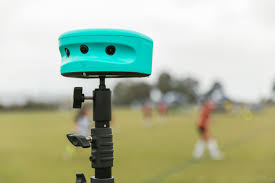
The Trace camera was the 2nd sports camera I bought and I’ve recorded quite a number of games with the system. Like Veo it has evolved over the years of recording soccer games.
Camera Plans
Trace has a different model from Veo, it’s more of a lease than a buy for the camera/tripod. When you sign up for the year you get the camera included. At the end of the year if you don’t renew you send the camera and tripod back to Trace. The Trace camera is on its second generation of the hardware.
The nice thing if you’re a parent wanting footage of your kid is that the Family Plan with Trace is a lower entry cost option than some of the other cameras with plans. You pay less up front and get footage for one player. If other players on your team want access to the game footage they can subscribe separately and pay on their own.
There are two options of Basic and Pro. The Basic has limitations on game storage, playlist creation, and does not include download options or analytics compared to the Pro. It seems neither of the plans allow you download the full match, only highlights. So if you just have one player and don’t mind going with the Basic plan the Trace plan can be a good cost option.
There’s also a Team plan, you need a minimum of 7 players to sign up for Team. If you get the Team plan the players get the Pro plan for the year. Once you have a whole team needing a camera the cost benefit isn’t quite as big because the cost per player adds up. The more players that want it, the more expensive it becomes. At that point it’s a balance between the total cost and the features of Trace vs other cameras.
Trace also has a Club plan but you have to request a quote from sales for the pricing so not sure what it runs. Ideally the Club pricing would bring down the cost per player but I haven’t seen the numbers so I’m not sure. The nice thing about Club pricing is that it would likely be built into your club dues over the course of the year so you wouldn’t have a big up front cost. The challenge for that is getting all the coaches and directors in the club to agree!
Game Recording
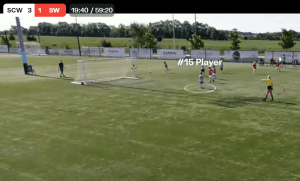 With the Trace there isn’t a way currently to watch the footage until it’s done recording and uploaded. After the game you use the Ethernet port on the back of the camera to upload the footage to Trace where it’s analyzed and you get an email when it’s ready. and you can watch, clip, download the game from there.
Trace has 3 lenses to capture the field and uses it’s software to merge the three lenses into one view. One thing that’s a little different is the camera needs to be level to record, meaning you can’t use a tilt mount to angle it down towards the field. The reason some people do that is to get more of the field and less of the horizon. Or if space is tight on the sideline and the tripod is close to the sideline, they might angle it to avoid any blind spot right below the camera. You don’t want to do that with the Trace because it can impact the alignment of the recording and it wont capture the whole field.
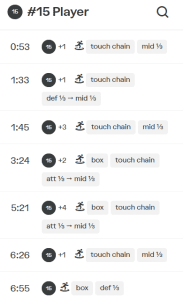 Once the footage is uploaded and processed you can see the game at go.traceup.com . When you go to a game you choose a player and you’ll see a list of their touches in the sidebar, as shown in the photo. You can watch the game from beginning to end if you’d like or you can click on the touches to jump to parts of the game where your player was involved.
You can create Playlists, where you add your clips to a list of plays. I believe there’s a limit to the number you can create with Basic but unlimited with Pro.
If you want to download a clip it will ask you whether you want TraceCam, which is the zoomed out view of the game, or PlayerCam, which is the zoomed in view on the kid you selected.
For several years the main advantage of Trace was the ability to follow individual players vs just the ball, I don’t know if they always called it PlayerCam but that was the idea.
In the past players wore trackers on their ankles but now the software tracks the players by jersey number. It won’t capture all their plays, there are some cases where the software can’t figure it out (example if the player is clear across the field). You still see the game footage, just not the individual player clip. As I mentioned with the Veo player tracking version, the technology to track players in all scenarios is tricky to get right 100% of the time but it’s certainly an improvement over no player tracking.
Trace Features
The TraceID feature is available if you upgrade to the Pro subscription and the MultiCam is available to all players.
Trace ID
Trace lets you create a profile page they call TraceID where you can feature info about you as a player and playlists that have certain categories of highlights you create. The best part about the page is that its easy to add clips to your profile. If you see one you like you add it to a playlist and it shows up at the bottom of that list. The main purpose of this page is to tell the story of a player, either for fun or for recruiting. Although they do make it easy to create the profile on their page, it’s not as simple to download your clips to put together your own highlight video.
There are many services made for recruiting that feature a lot of information about your player and also put a highlight video front and center. If you use one of those services you have to download each clip one at a time which is kind of a pain. I like they offer TraceID but I wish they also made it easier to download all your clips at once rather than one at a time. To download once clip you need to click through several dialogs, then you are sent a text or email with a link you follow to download the clip. If you need to download lots of clips it’s a cumbersome process, although it could be there’s a way to download a bunch at once I’m not aware of.
MultiCam
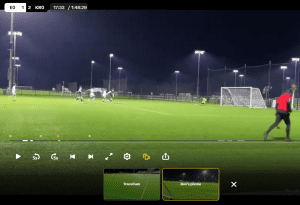 Trace is the only consumer level camera system I’m aware of that will let you incorporate multiple video angles into the same game video. I tried it out, you install the Trace app on your phone and then record parts of the game with you phone but through the app. Since most of the camera systems setup at mid-field this gives you a different view of the play. Cool for keepers if you setup at one corner of the field to give a better view of what’s happening farthest away from the sports camera.
I recorded with my iPhone through the Trace app, then it uploads the footage into the Trace cloud along with the main camera video. It’s kind of hard to explain how the experience works after recording but I did a writeup on how I used it and what it looked like, Trace MultiCam Video.
Highs & Lows
Probably the biggest downside for me of Trace is that you can’t livestream games. If you don’t need to then it’s not a big deal but it does put it out of the running for some teams who need it.
Another challenge is one I already mentioned earlier in the TraceId section. I wish there was an easy way to download a group of clips vs one at a time. The other download item that is a little frustrating is that you can’t download the game footage unless you have a minimum number of players signed up for a Trace plan. I wish they would let you download your game if you wanted it.
Where Trace stands out to me is for the non sports parent who wants to record just their kid without breaking the bank. It still gives you the all in one system that just needs a phone to start and stop and hosts all the clips in one place. The clips are easy to watch and add to a playlist. The entry cost for just one player is lower than the other systems and you get the player focus so parents can watch just their kid.
Sports Recording
I’ve used the Trace camera for competitive and high school soccer games. I’ve only used it for soccer I don’t think it works for other sports, at least not at this time.
I’ve recorded in heavy rain and heavy winds (with sandbags) never in extreme heat or cold. The camera stayed dry on the inside, the picture swayed some in the wind but you can help that by lowering the tripod or trying out some guidewires, like all other camera.
Camera Pricing
The pricing for the Trace is lower for the camera since it’s a lease model. You pay less up front and get to use the camera for a year. The price of the camera stays pretty much the same all year. They do occasionally run a Trace discount on the camera but its usually only for a few days. If you request our camera newsletter you’ll get updates when they run their sales.
As I mentioned there is a Basic and a Pro plan, the Pro is about 60-70% more than the Basic for one player. You can get a Team plan for only about 12% more per player than Family but you have to get at least 5 people on the team. I am notified when there’s a Trace promotion, if you’d like to know when new features are released or the Trace has a flash sale just let me know what email address to send it to
Next Steps
Typically a camera plan is for 12 months. If you’re not in season you might want to wait until right before your season starts to signup for Trace, that way you’ll get it for both Spring and Fall seasons. Unless you’re able to get it early but not activate the camera until
Here is our look at Trace PlayerFocus Tracking , if it seems interesting here are your options for getting going:
- Rent a Trace to see if you like it
- Get a plan on your teammate’s Trace
- Get a discount on a Trace plan
Reeplayer Camera
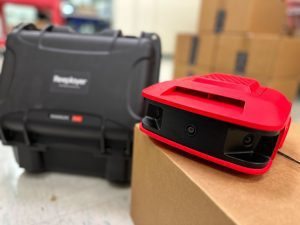
The ReePlayer camera is one of the newest of these systems to be released. As I write this I got an email that my camera should ship in the next two weeks. I imagine it’s not easy being a start-up against bigger & more established companies like Hudl, Pixellot, and Veo so I hand it to them for sticking with the soccer camera.
I was one of the first 100 people to order this camera so I’ve been receiving updates for a long time on the progress of the different iterations of the camera. The cool thing about start-ups is that they can drive innovation keep the industry competitive. Obviously I can’t write a ReePlayer review since I don’t have the camera yet but there are a few things about it that sound interesting.
Storing Soccer Games from Different Systems
From what I understand they are working to make it possible to store games from other camera recording systems in the ReePlayer site. So for example if you have a ReePlayer but your kid’s high school team has a Hudl and the club team they guest play on has a Veo you could store those games in your “reeplayer portal”.
I’m not sure what kind of editing and analytics, if any, you would get for imported games but it would be nice to have them all in one place. I hope once my camera arrives this is possible.
Soccer Camera App
I’ve seen over the course of their updates that the team has put a lot of effort into making their app user friendly. It sounds like you might be able to do live tagging and video editing inside of their app. Excited to see how it works.
Modular Camera Design
The camera itself might be a little different since it was designed to be build of different replace modules. So if you wanted to upgrade the lenses at some point you wouldn’t replace the whole camera just the lenses. Sounds like it will be a lease model so it makes sense for the company. They would be able to update camera components for repairs or upgrades without having to replace the whole thing.
On Demand Livestream
Other systems build the cost of streaming into the camera or offer it as an add-on monthly/annual service. It sounds like ReePlayer will charge you per game that you livestream. So if you only need to stream a game occassionally you don’t need to pay for the plan each month, you just pay for the livestream on demand. I’m not clear on whether there will be a sim card in the camera or if teams need to provide their own hotspot to livestream.
We haven’t written much about the ReePlayer since we haven’t gotten our hands on one yet. Here is the brief Reeplayer camera snippet we shared. We’ll let you know how it goes. Once we’ve tried it out we will probably make it available for rent. If you’d to try it out for a weekend let me know your email address here and we’ll add you to the camera trial list
Update: Our Reeplayer has arrived and we’ll be testing it out in a few games coming up this season. Excited to record and live stream and let you know what we think.
Hudl Focus Flex
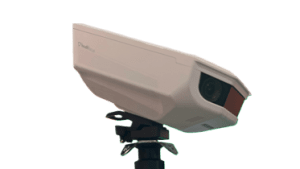
The Hudl Focus Flex soccer camera is popping up on more fields this year. When it first came out it was rare to see a Hudl on the sideline of a club soccer game but I’ve seen more of them at the fields. I haven’t been able to get my hands on one yet so I can’t do a Hudl Focus Flex camera review.
I did get demo of the Flex when it debuted at the United Soccer Coaches convention in Philly. Unfortunately that’s as close as I’ve gotten to using one of the cameras so far.
The Flex is a little easier to talk about than Reeplayer, even though I haven’t used the camera I’ve visited with other teams on the sideline about the portable Hudl. You learn a lot on the sideline talking to the other sports video dads and moms out there taking down or putting up their tripods in between games.
Here are some of the things I’ve heard from other coaches and parents that I chatted with at the field.
Video Integration
Coaches like how the video the camera records is integrated into the Hudl ecosystem. If your school district or club already uses Hudl then it’s nice to have all the video in one place.
It does seem that so far Hudl has worked more with organizations like school districts or soccer clubs than individual teams. Maybe that’s how they’re rolling it out. I haven’t used any of the Hudl products so if I get some of the details wrong please correct me.
Video Upload & Breakdown
From what I understand the footage uploads while you’re recording so it’s ready sooner after the game is finished. I think the data plan is built into the cost of the camera plan so for every team that records the game is uploaded into Hudl.
Coaches have also mentioned the integration with Hudl Assist. They like being able to submit the game to Assist and get it broken down and tagged. I believe that process is done by humans, vs software. Or maybe it’s a combination of software and human input. Typically there’s a cost to have a game analzyed by Hudl Assist, I’m not sure if that’s included in the pricing of the Focus Flex camera or if it’s extra.
Battery Life
A frequent comment I hear from Hudl owners is that the battery life on the camera isn’t very long. I’ve seen coaches run a long power cord down the tripod and plug it into a portable battery to supplement the life of the camera. I think some said that Hudl had sent them extra batteries to help accommodate for the shorter recording times.
Video Quality
I’m usually on the sideline putting up a Veo when I talk to the Hudl owner/operator and I ask about the camera. The ones that switched from Veo often comment that they miss the video quality of the Veo lenses. I don’t know the technical specs of the Focus Flex but it sounds like the video it records is a lower resolution than the other cameras.
Pricing
I joined the Hudl waitlist email in the summer of 2022. Every time I’d get an email with an update I’d click on the button or link to “Get Focus Flex” it would take me to a form for more information. Early on I filled it out and had a call with someone at Hudl but the camera hadn’t shipped yet so there was no pricing. Even today if I go to the “Get Focus Flex” page, it’s a form to fill out for more information on the camera. I think it’s because Hudl works more with clubs and schools so the pricing can vary depending on any existing relationships with Hudl. Once we get more info on camera pricing we can let you know, just tell us which email to update
Next Steps
As I mentioned above I don’t know pricing on the cameras and I’m not sure how an individual parent who’s not with a club or school can get one. After chatting with the product owner at the United Soccer Coaches convention I was excited to try the camera but haven’t gotten a chance yet. One of my kids is going to be using the Focus Flex in an upcoming season so I’ll be able to see how it works from a player/parent perspective. Once I know more about the camera and how you can get one I’ll let you know, here’s a look at the Hudl Focus Flex App
Pixellot Air Camera

The Pixelot Air is the third AI camera that I purchased. I bought the camera right after it came out so I have the initial version, I believe they’ve released a newer version since then so I haven’t tested that one.
The video of the Pixellot is somewhat comparable to the Veo. I made some videos about a year back that compared Veo vs Pixellot game recorded by both cameras, those were with an older version of both cameras.
The upside of Pixellot is that they’ve been doing sports recording for a long time, with a fixed camera. For example I was surprised watching back a recording of a high school game to see Pixellot had captured the high school scoreboard and superimposed it over the bottom right of the video. So they have years of experience with sports video and it showed with the specs of the first version of the camera.
The main reason I bought the Pixellot Air in the first place was (at the time) it had the longest battery life, could store the most games at once, and allowed you to charge the camera while you were recording. The battery and storage capacity were particularly important for teams who played a lot of games in short period of time, whether in a day or over a tournament weekend.
Camera Plans
When I first got the Pixellot there was only one plan but now they have a few options depending on how you use the camera. You can get a monthly plan if you only record soccer a few months of the year or you can go with an annual plan if you play and record most of the year.
The monthly plan has two flavors – a Basic one that limits the number of games you can record per month and the amount of time the games are stored. Or the Regular plan that doesn’t have the limits but costs about double the Basic plan. They do give you a discount if you go with the Annual plan, about 20% less.
The other thing to consider is if you’re recording one team or several. Pixellot has a Team option and also a Club option, the Club one costs more. The Team plan gives you 1 team and 1 sport, the Club plan gives you any supported sport and unlimited teams.
Game Recording
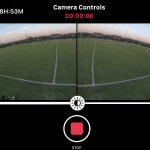 When you’re at the field you start and stop recording with an app called Pixellot Control. That’s where you see the field preview before you being recording and it also lists all the games you have stored on the camera.
The camera itself is sturdy and weatherproof. It’s actually heavier than Veo and Trace, if you put Pixellot on the 13 ft Impact tripod we use for rentals and raise it all the way up the tripod will lean a little forward. The mount that comes with the Air is an angled mount that actually points the camera at about a 45 degree angle. This is so you record more of the field and less of the horizon, which is nice. The Trace can’t angle down otherwise it impacts the recording and you can get a separate Veo tilt mount but its nice that Pixellot comes with it, or at least did when I bought it.
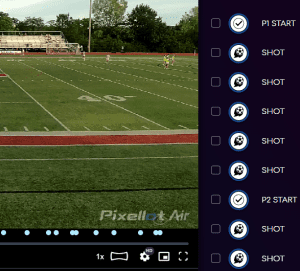 Once the game is over you plug the camera into your router with an ethernet cable and use the Pixellot Control app to start the upload. Recently they added the option in the app to upload wirelessly but I haven’t had a chance to try it out yet. Once your game is ready you can watch it either in a Web view or in an app. Their platform is called Pixellot You and it creates clips of the start/end half and also shots and goals, it calls these Moments.
You can use the editor to go in an create your own clips of the game and assign them a variety of categories. For analytics and tracking Pixellot purchased a company called Vidswap and uses that for their game analytics.
Pixellot Features
There are a few features that help Pixellot stand out from other camera systems.
VidSwap
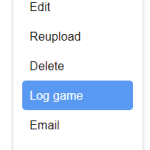 The analytics abilities in VidSwap are pretty in depth, in fact more than your average soccer parent would be looking for. However, if you’re a coach then you’ll be happy with the abilities to create telestrations, add player spot shadows, create clips/notes, player stats.
One useful thing they do is offer the ability to breakdown a game, kind of like Hudl Assist can do. Depending on the plan you have you get a certain number of these a season. As you can see in the menu pictured you can select “Log game” and it will send a recorded game over to their analytics team to break it down.
So for a busy coach this could be a big help. I believe once you’ve used up your included games they let you purchase additional so its like game breakdown on demand.
Auto Highlights
The Pixellot You app has improved over the last few years. It’s now pretty easy to watch the game and create a clip in the app. Once you have enough clips they have a feature where they’ll make a highlight video for you out of your clips. The only thing I don’t like it about it is that they added their own Pixellot intro and branding into the video it creates.
Integrations
I’m surprised that more camera companies aren’t doing this. About a year ago Pixellot started offering an integration with the PlayerMaker Soccer Tracker. So if teams record a game with Pixellot Air and the players are wearing the PlayerMakers then you can export your data from PlayerMaker (in xml format) and import it into Pixellot to overlay the censor data on top of the video. I haven’t tried this out but it does seem like a useful option. Of course there’s a cost to the PlayerMaker but if you have them for your team it would be nice to marry the player tracking and video into one view.
Highs & Lows
Since I’ve had the Pixellot Air they have improved the quality of the ball tracking and the functionality of the app. They’ve also added different plans so I feel like they’re listening to the customer and improving the experience. While the companies extensive experience in fixed video is an advantage it does seem to be a bit of a drag for Pixellot Air users in some ways. The mobile side is just a portion of the Pixellot business so it does feel like fixed camera side gets more attention and that the mobile cameras don’t innovate as quickly as some of the other cameras available.
For example, it would be nice if the Pixellot Air could livestream and I think they’ve been working on it for a while. However that hasn’t been available to us yet and it’s been a few years. Some of the other cameras have added that feature so head to head that’s one area where they haven’t kept up.
At times it does feel like the Pixellot Air features aren’t as integrated and easy to find/use as some of the other cameras. While VidSwap is a comprehensive analysis option there’s no way to access it from inside of Pixellot You. The process of requesting access and navigating to the analysis is a little frustrating, I wish they would integrate VidSwap access and data more into Pixellot You. For power users, logging into a separate account for analytics is fine but for the average soccer parent tasked to run the teams camera it would be nice if the analytics were more easily accessible.
Sports Recording
 We’ve used the Pixellot to record soccer, basketball, and lacrosse for club and high school. When you sign up for a Pixellot it lists the other sports it can track like hockey, football, baseball/softball, and volleyball.
We’ve recorded in the rain and heavy winds, although the audio does struggle when it’s really windy with our v1 version of Pixellot Air. We’ve recorded in the high temperatures of the summer without overheating issues.
Camera Pricing
The pricing model of the Pixellot Air is pretty similar to Veo. You pay up front for the camera and own it. I don’t really see the Air go on sale that often but the cost of the camera is about 15% less than a Veo at their sale price.
As I covered earlier they have a Basic (Lite) and a Regular plan for a Team. The Lite plan is about 35% less than the regular plan but it does put limits on the number of recordings and the amount of storage. You can also get a Club plan for about 25% more and that gives you unlimited sports and unlimited teams. For all plans you save money if you get an annual plan vs monthly plan. We keep an eye on the price of the Air and can let you know if it goes on promotion, just let us know what email to use
Update: Pixellot has come out with a new model called Pixellot Air NXT. The new model has more storage, longer battery life, better lenses. We will let you know what we think once we test it out.
Start Recording
Here’s a look at 5 Pixellot Air tips, if you think it could be a good fit you can
- Rent a Pixellot Air to see if you like it
- Buy a used Pixellot
- Get a discount on a Pixellot
Spiideo Camera

I haven’t recorded with this camera but I did get to check one out at the United Soccer Coaches convention. The Spiideo was a different design than a lot of the other sports cameras, it had a big bubble over two lenses and had a case you needed to plug the camera into.
Having to tether the camera to the case seemed a little cumbersome however the video ability was pretty slick. They had an iPad at the booth showing how you could access the video on your device soon after being recorded.
The ability to access the recording on a tablet on the sideline and review back plays near real-time is something the other systems above aren’t offering. That could be helpful for assistant coaches wanting to make in game adjustments or go over a play with the team at halftime.
Soccer Game Analysis
It seems that games recorded on the SmartCam would be available for game analysis in the Spiideo Perform web app.  Using a free trial I could see sample game recordings and how you’d watch them back and mark them up. Since it was a trial the Presentations, Clips, and Tags features weren’t available to use but I could watch the games. I’m guessing the Tags are how you can categorize the different events and then filter on them as well. The tools for marking up the video to create visualizations were pretty slick, I wasn’t sure if you could download the game or clips with those visualizations in place since the trial didn’t allow downloads.
The example was from a big stadium where they had 5 different fixed cameras so it wasn’t a sideline view of a club or high school game that most sports parents would be recording. It was cool that you could switch camera angles between different cameras but for most of us it would just be 1 camera angle from a portable camera rather than a fixed stadium camera. It would be nice to see the analytics available if we’re just using the portable sideline camera, which leads to the next feature.
Detailed Game Breakdown
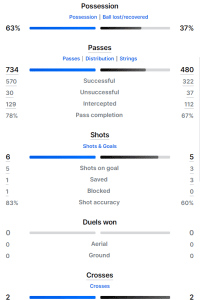 Spiideo offers something called AutoData that sounds similar to Hudl Assist or VidSwap breakdown. I haven’t used either so can’t compare but with both you upload a full game (or already have it recorded in their cloud) and then a combination of analysis professionals and software are used to breakdown your game into great detail. I don’t know if AutoData is included or if it’s something you pay for on demand. I clicked on the “Submit Game” link but was taken to the page to contact sales.
The level of detail that comes with Spiideo Perform (shown in screenshot) seems somewhat similar to Veo Analytics so I imagine the breakdown in AutoData is a lot more in depth. Probably nothing that a typical soccer parent would want to see but good for coaches, particularly high level ones that have more time to spend looking at results.
I believe that Spiideo is used by many college teams, I’ve helped several college coaches sell their Veo cameras when the school switched to Spiideo so they could get the iPad on the sideline to review during a game.
Livestreaming Soccer
Looks like Spiideo can livestream the games and fans can watch the feed using something called Spiideo Play. The website seems to show it uses OTT to allow teams to control access to the footage to certain group of fans. There looks to be a production component that lets teams do play by play commentary and run commercials as well.
Pricing
I don’t know the cost of the Spiideo camera and service, when I click the Buy button it takes me to a page to contact sales. My impression is that Spiideo is a higher cost than the other sports cameras. It does seem to offer more real-time video but that might come with a higher cost. There do seem to be a higher percentage of college teams that are using the camera than club or high school. This could be because they need higher level of analytics and more real-time access or it could also be because the camera is to expensive for the club/high school teams budget. At some point we’ll hopefully get one of these units to try out at a high school game/club game to see the results and learn more about pricing.

All in One vs Bring Your Own Camera
This next group of sports recording systems tends to cost less for two main reasons:
1) Camera lenses aren’t built into the system. You use a camera like a go-pro, camcorder, or the camera on your phone.
2) Don’t require Hosting & Analysis. These systems tend to store the footage on removable media, like SD cards, so you can use the video how you’d like. You don’t pay for processing, analysis, or hosting.
There are variations of these two features across cameras. Some use a different camera but still do the processing (SeeUsPlay and Camera-Pan). Some have their own camera (Soloshot). Some do the basics but have started offering hosting or streaming (Pix4Team and XBot)
I get emails and calls from teams who want to record but just want the footage on the SD card, nothing else. This category of cameras could be a good fit for them. If you’re a busy soccer parent or coach who just wants to press record and have the games upload, these cameras require more steps on your part so you might be better off with “all in one”. If you love tinkering with technology, are working with a limited recording budget, just play a few months out of the year then these systems could be a good fit. We’ll start off by looking at the first one we used, the Soloshot.
Soloshot Camera

Soloshot was actually the first automated soccer camera that we tried back probably 9 years ago. We liked the idea but unfortunately our young players weren’t excited about wearing the tracking tag.
I didn’t use it again until about a year ago, they’ve come out with newer versions, currently on the Soloshot 3. When our kids were little we bought multiple tracking tags and put one on several players. They weren’t a fan of the strap around the arm or chest so we ended up sewing a small pocket into the waist band of the shorts and sliding it in there.
GPS Player Tracking
This camera is different because it doesn’t use AI to track the players. Instead it uses the GPS tracker they wear to know where to aim the camera.  You can buy multiple tags for the unit so we bought a camera for the team and multiple tags for several players.
The upside is that it always knows which player to follow. Using AI cameras there’s the chance that the software gets confused and doesn’t track properly. With Soloshot when your player is wearing a tag the camera knows where to point.
One downside is that if your kid is on the bench, then the camera is recording the bench. That’s why we bought multiple tags, so if one kid was out of the game it could record a kid on the field. Since it follows one player at a time the Soloshot is better suited for capturing individual footage than it is for team footage.
Since Soloshot uses a GPS signal if you’re indoors it might not be as accurate, it works better outside than indoors.
MultiSport Recording
Since Soloshot doesn’t use an AI model to understand the footage you can also use it for multiple sports as long as you wear the tracker. I believe it was first designed for surfers wanting to capture video of them out in the water. We’ve only tested it for soccer but it will follow for many sports. One nice thing about working for multiple sports is that once you’re finished with the camera and want to sell there’s a bigger group of people who might be interested to buy.
System Improvements
The earlier versions of the Soloshot had some quality and customer service challenges but they’ve since come out with a newer version that’s made a big difference.
No Subscription
Once you buy the Soloshot there’s no recurring cost. It’s up to the athlete or parent to copy the video off the SD card and store/clip/analyze/share the video however they need but there’s no subscription. Another nice thing about using external media is that if one fills up, you can swap out another card. With the all in one cameras you usually have to upload to clear up space before you can record another game. You can also buy extra batteries if you’re going to be recording a lot of games in a row.
Pricing
 Soloshot has two options, Basic or Full bundle. They both include the camera but the Full also comes with a tripod, camera case, and the SD card. The Full is about 35% more than the Basic but I’d recommend it if your budget supports it. I got the Full and it’s nice having the camera and tripod all in one case with a shoulder strap so you can take it to the field and back easily.
Once you purchase the camera there aren’t any additional costs unless you want to buy extra tags or SD cards. As you can see from the photo Soloshot does run flash sales on their cameras occasionally, to be notified of when they’re on sale just let us know what email to use here
Start Recording
Soloshot will give you a price break if you’ll order for delivery a month or two down the road. I’m guessing to help manage inventory. One option is “Ships Now” and the other option is “Wait a little, Save a Lot”, which saves about 15%. So you might save money if you order early before you need to record. Here’s a look at the Soloshot in action – Soloshot-Player Tracking
SeeUsPlay Camera

The team from SeeUsPlayplay have taken advantage of the 5K GoPro lenses to capture game video and they add in the processing of the game so it’s kind of a hybrid of “bring your own camera”.
Only certain versions of GoPro cameras are supported, right now it’s certain versions of GoPro Hero. Since they process the video for you there’s a fee for the plan but they do offer different options we’ll cover later.
As you can see from the photo SeeUsPlay has a mount for the cameras that angles each towards one half of the field and also contains a battery so you don’t need a separate battery for each camera. You do need an SD card in each camera to capture the game footage.
Game Recording
When you’re at the field you snap both cameras into the mount, plug them into the batter, power them up, thread the mount onto a tripod, and raise it up at mid-field like the other cameras. Then you use their SeeUsPlay app to connect to the cameras and start recording. One thing I have a problem with is remembering to tap the “Start of Half” and “End of Half” events in the app. I’m used to starting the recording and leaving it so I forget to mark those halves. However the recoding still seemed to come out ok when I forget so I’m not sure if they have to do something manually in that case when it processes.
 It is nice that you can tap the “Highlight” button during the game and leave a note when something exciting happens. I’ve been waiting for a system to add this into their app and I don’t think many of the cameras have yet.
Once the game is over you’ll get an email with a link to use to upload the footage. You pull the SD cards out of the GoPro, copy them to the hard drive of your computer, then follow the link to a webpage where you upload the files from your hard drive. (Don’t try and upload from the SD cards because it will timeout, at least it did for me).
Once the files are uploaded and the game is processed it will be uploaded to YouTube as a private video (you’ll have to grant SeeUsPlay access to you YouTube account the first time so it can be uploaded).
Camera Plans
Whether you have several teams to record or just one can determine which plan you go with. SeeUsPlay offers a 20 game pack game that lets you record as many different teams as you’d like but you’re capped at 20 games total. If you’d like to record more then you can add another 20 games pack. I can see this being good for a family with multiple soccer players since you can use it across teams. If you have 2-3 kids playing in a season you’ll pass 20 recordings but you don’t have to record all the games if some are more important than the others.
Now if you have a club team that plays all year round the Unlimited plan might be a better fit. This one is double the price of the 20 pack but it lets you record as many games as you need, just keep in mind it’s for one team. This is the plan that we used to try the camera out.
Camera Features
Here are some of the things I noticed about the SeeUsPlay camera that helped is stand out:
Game Highlight Live-Tagging
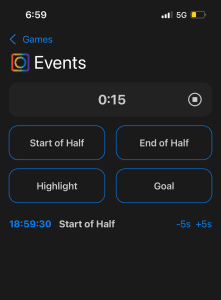 As I mentioned above I like the ability to mark highlights during the game, I haven’t seen many (or any) other systems that make it this easy. They also make it easy to start and stop both cameras at once in the app. When I used the app there was no preview to show you what the cameras are seeing so you have to aim the tripod and hope you’re lined up. Although as long as you put it at mid-field and aim forward you should be ok.
High Resolution Video
Since they’re using 5k cameras you should get a higher resolution video when you zoom to the far side of the field. I haven’t done a good side by side compare with an “all in one” 4k camera to see a play in the far corner but since it has over 70% more pixels captured it should be a better zoom. I know this has been a frequent question from readers, getting a higher resolution vide on the far side of the field.
Since the cameras are separate it seems it would be easier to upgrade over time. As long as the new cameras are supported it seems you could swap out newer versions of GoPro as they are released.
Game Pack
Buying game recordings in a pack seems to be unique compared to the other cameras available. The “all in one” cameras do offer monthly, 6 month, 12 or 24 month plans but they’re all based on a time period. If you want to record some in the Fall and some in the Spring they’re not really setup to accomodate that scenario.
I don’t know how long you have to use the game credits you buy with SeeUsPlay but the ability to record as needed over a 12 month period is a nice option for teams that play seasonally and dont need to record every game.
Highs & Lows
The SeeUsPlay is a nice hybrid system option that has a lower subscription cost than the all in one but still processes the game for you and uploads it online. All the benefits I listed above under camera features make it easier to capture high quality game moments for a lower cost.
I do wish the process of taking the SD cards from the camera, copying to the hard drive, and uploading could be simplified. Since it’s using the GoPro camera I imagine its not as simple for SeeUsPlay as it is for the proprietary all in one systems. Hopefully over time that process can be streamlined.
The other thing I’d like to see added is the ability to access the processed video file. Right now it’s automatically uploaded to YouTube, which is a nice feature, but I’d also like to be able to get the final video file as an mp4.
Sports Recording
We used SeeUsPlay for some high school and club soccer games. You can record in the rain and we also did night games under the lights. For sunny days they do sell a sun shield you can attach to the top of the cameras. For now I believe its only recording soccer but it sounds like adding more sports could be on the product roadmap.
Camera Pricing/Plans
Since this is “bring your own camera” you can get new GoPros or used GoPros so the cost will vary depending on which version you buy and whether you buy new or used. You’ll need to buy the SD cards separately and you also have the option of getting your own tripod.
SeeUsPlay has an accessories page where you can buy the camera rig, backpack for the system, sunshades, sandbags and also a tripod.
The camera plan has two options, a 20 pack game or Unlimited for double the price. The recurring plan will add to the cost over an option like XBot but the plan is also half the price of the all in one systems.
If you get the 20 pack you can use it for as many different teams as you need, if you go with the Unlimited then the plan is just for one team.
Start Recording
Here’s a look at the SeeUsPlay camera system. If you’re off-season you might want to wait to buy the plan until your next season is getting closer since the plan lasts for a year. For the GoPros you can keep an eye camera sales to see if you can get them at a discount. Same with the tripod and sandbags. The camera rig (or mount) you need to get from SeeUsPlay and we haven’t seen those go on sale. If there is a SeeUsPlay discount we can let you know, just let us know what email address to send it to.
Pix4Team Camera
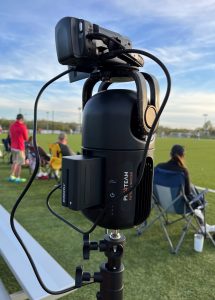
The Pix4Team camera was one of the first few AI soccer cameras that I purchased. I ordered it on a pre-sale so had to wait quite a while to test it out but also got a good discount. Since that version they’ve come out with a new version that’s made improvements over the original ball tracking. The main reason I ordered the camera system was that it didn’t have a recurring cost to use and I’d heard from a lot of people looking for that option.
I haven’t seen many cameras with a combination of features like the Pix4Team. Probably the only one somewhat similar is the XBot but it’s only for phones, not cameras. The Pix4Team physically tilts and pans the camera to follow the ball, rather than doing post processing to digitally zoom and pan.
The other thing that makes it different is the robot itself doesn’t have a camera. The robot for the Pix4Team has a lens on the front to follow the play and a bracket on top that you can mount a camera or phone on top of. The robot pans left and right and the camera you mount on top is connected to the robot so it will zoom in an out to follow the ball.
Game Recording
You set the Pix4Team up at mid-field like the other cameras. As you can see from the photo the unit is larger than most other cameras, pill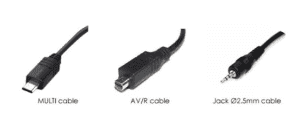 shaped and not very light. You attach it to the top of the tripod and then attach the camcorder to the top of the robot (as shown in the photo).
They have a list of cameras that are compatible with their robot on their website. I started with a relatively low end camcorder (Sony HDR-CX440 HD Handycam) but then upgraded to a Sony FDR-AX43 UHD 4K in order to get better video and also to be able to livestream.
 You’ll need a (charged) battery for both the camcorder and for the robot itself. You’ll also need to order a few sets of cables (you’ll find those on their website) and an SD card with enough space to fit at least one game (I got one for sale on Black Friday).
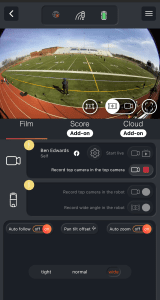
You install the Pix4Team app to preview what the camera sees, to configure the recording, and to start/stop recording.
Out of all the cameras I’ve used, this app has by far the most options when configuring your camera. I didn’t change them much, I went with most of defaults but did mess with the zoom level. It has normal, wide, and tight settings and the default was wide. In v1 of the camera we needed to keep it at “wide” otherwise the tracking would suffer, it wouldn’t keep up with the ball at normal zoom. Seemed like the camera would zoom out then track as opposed to zooming out and tracking simultaneously. Once v2 came out the tracking was better so using the normal zoom did a better job following the ball.
Camera Plans
The Pix4Team doesn’t require a camera plan, so no recurring costs. They were experimenting with offering a hosting service where you could upload what you record, which would be an extra cost. I think that’s a good idea to make it easy to store/share but I don’t see that option on their website any longer, maybe they’re tweaking the offering.
Camera Features
There are a few things about the Pix4Team camera that could make it interesting for your team:
No Subscription
A big draw for many teams is that you don’t need to pay an annual subscription. I think this could be a good option for a high school soccer team that currently uses a C-team player, manager, parent to hold a camera and record. Usually those seasons only last a few months so they don’t need an annual or 6 month plan. The manager can set it up in the press box or at the top of the bleachers and just let it run all game.
The biggest challenge would probably be making sure you had all the batteries charged and all the cables each game. I’ve been on the sideline helping other high school teams operate their Veo camera and that one is simpler, just a power on and start/stop button. With as many components as Pix4Team has it would be more complicated for volunteers. You’d need to train the camera operator well.
If you had space to store it you might to keep the camera on the robot with all the cables and the robot on the tripod and store it all put together. You’d also need to make a plan for who will upload the footage so it would be available for review the next day at practice. Probably a good idea to have extra SD cards in case the upload was forgotten and you had games to nights in a row and the card was full.
High Resolution Video
Since you can bring your own camera you can get pretty high resolution recording. I ran into a guy at the field using a really high end camera on his Pix4Team so I imagine his zoom resolution to the far side of the field was pretty good. There is a list of compatible cameras so check your version if you already have a nice camera to make sure it would work.
Livestreaming
I was able to livestream this WPSL game to YouTube with my Pix4Team v1. The tracking wasn’t great, I also streamed it with the Veo, but with V2 of the Pix4Team hopefully the livestream tracking has improved. You configure the livestream in your app and I streamed the same game off one hotspot for both the Veo and Pix4Team. There is a backpack you can buy with the Pix4Team that I show in a photo above. Definitely makes it easier to travel with all the components, I’d recommend it. The bag takes up more space than an “all in one camera” case but you could take it with you for away games and livestream, which is a big deal for soccer teams that travel a lot.
Highs & Lows
The benefits of the Pix4Team that I listed above are my favorite parts about the camera. The ability to capture high quality game video without a recurring cost, especially if you only play a few months a year, is attractive. One of the other benefits over the all in one systems that do post processing is that you can see the footage back right away if you connect it to your TV.
If you’re a soccer parent who just wants to press start and stop the Pix4Team has more parts/setup/configuration than the all in one recording systems. If you have a “tech parent” on the team they’d probably enjoy fiddling with it but if you want simple then you might be frustrated with Pix4Team.
Along the same lines, you still have to copy off the video, upload it somewhere for players to see, and manage distribution/access to the games. Again, if you have a tech person to run that it’s better but it’s one more step to making the footage available to the coaches/players/families. It would be nice if Pix4Team would continue pursuing the hosting option for the games, or partner with some company that made it simple.
Lastly, the return process wasn’t as smooth as other international companies like Veo. When my camera wouldn’t work I had to go to the post office and fill out custom forms and pay for the shipping myself to ship it back. I wish they would just send me a label or have FedEx/UPS/DHL come pick my camera up from me like other companies do.
Sports Recording
We used Pix4Team for both high school and club soccer games. Recording in the rain is a pain. You have to cover the unit because your camera can’t get wet. Also, since its heavier and bigger the wind catches it more than other small profile cameras. It’s better at recording in the sun than most other systems since the camcorder adjusts for it better than lenses of other cameras. Pix4Team does record multiple sports. For v1 you had to pay for each sport separately but now I believe all sports they support are included, which is nice for multi-sport families for schools.
Camera Pricing
The pricing for Pix4Team is in Euros but it comes to about $2K USD. Once you add in the bag, battery, cables you need its about another $300 more. The camera cost depends on what level of camcorder you buy, if you get the one on their site its around $600-700.
Pix4Team was thinking ahead on camera design. If you want to upgrade from V1 to V2 you could ship it back and pay a few hundred dollars and they’d upgrade versions. Not sure if they’ll do that for each version they release but I was glad to see that. As mentioned earlier, Pix4Team has no plan so the cost is all in the hardware and accessories.
Start Recording
Here’s a look at our Pix4Team Review before you get going. I was lucky to get my camera at a big discount in the pre-release sale but I’ve noticed they do still have sales on the camera occasionally. You can use this link to get a discount or if there is a Pix4Team discount we can let you know, just let us know what email address to send it to.
Xbot Go Chameleon
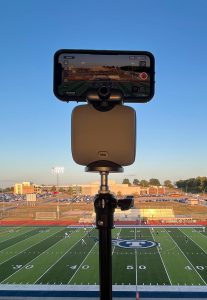
The Xbot Go is on it’s second generation of technology. I ordered the original back when it was named XBot Blink Focus and was a smart gimbal. Since then the team at XBot have listened to user feedback and come out with a newer version called XBot Chameleon that overcomes some of the limitation in the original designs.
We pre-ordered XBot Chamelon as part of their pre-sale so we’ve only had it for a few games. There may be some things we don’t get right since I’m still learning the camera. This soccer camera system is different than the others mentioned here since it uses your phone to record the game, which has pros and cons. I listed it as “bring your own camera” since the camera is in your phone and not part of the actual system. I’ve only tested it with an iPhone so I’m not sure how well it works with an Android. They do have a list of supported phones on their website.
Since this system relies on your phone you need to make sure it’s fully charged and also has enough space to record. One downside is that you won’t be able to use your phone during the game while it’s recording. After I got the smart gimbal I actually bought a used iPhone for about $400 to use just for recording. Now I can charge it fully before the game, have plenty of space, and I’m not without my phone during games.
For this specific test I was recording up in a pressbox of a high school stadium so it was covered but if you’re playing in rainy weather out at the soccer field you probably don’t want to have your iPhone up on a tripod.
Game Recording
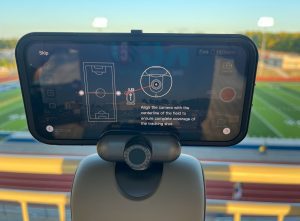 To get started you install the app and connect your camera and your camera remote to the app. Then you setup the XbotGo Chameleon on a tripod at mid-field. It has a knob you loosen and tighten to slide your phone into a clamp that holds it in place.
I had to remove part of my Otterbox case to get the phone to fit into the top of the Xbot, which kind of stinks because if it falls over you certainly want a good case on your phone. It’s also inconvenient to have to take your case off every time you use your phone to record. Luckily I was able to slide it in with the bottom frame of the case because it would have been a pain to take the whole case off i order to record. It would be nice if they could make the clamp open wider to accomodate phone cases.
You go through a few screens in the app to get the camera ready and hit record. After that the Xbot robot takes over and physically pans the camera and digitally zooms it in and out to follow the ball. When the games over you lower the tripod and press stop. I didn’t need to use the remote since I was already up high so the tripod wasn’t extended up.
I recorded a high school soccer game and it broke the recording down into 4 different videos, each about 30 minutes long. Once the recording is finished you can watch the video back in the app. It has a slider at the bottom where you can jump to any point in the video but I wish it had a Jump Back/Jump Forward 10 second icon as well. That’s pretty standard in most other video solutions so I’ve gotten accustomed to using it when looking at footage, hopefully they’ll add that.
The app also has a simple editor that lets you scroll through a clip and set a beginning and end marker and then creates it as a separate clip. You can download the clip to your video library and also the main videos from inside the app.
Since I was high up and far back from the field the Xbot was often zoomed out so didn’t have to do as much zooming and panning, I’ll test it again on the sideline and see how it does closer to the field.
Camera Features
There will definitely be some teams interested in this new generation Xbot. How many teams will probably depend on how the tracking turns out. Here are some of the features teams will be excited about:
No Subscription
Not having a recurring fee will be great particularly for younger teams that don’t play as many games or as often. If you play year round at a high level then a subscription cost can be shared over the season and across players. For teams that just play for a month or two in the Spring and Fall this could be a good option, like many rec soccer leagues.
Immediate Footage
Since your phone is recording the game you can watch it back right afterwards. This could be fun for the drive home or if you’re at an away tournament you could bring a lightning to HDMI adapter and watch it in the hotel lobby.
The one downside to it being captured by the phone is that you can’t access any missed plays after the fact. For example, in our game there was a penalty kick and the striker for the other team was hanging out around half in case it was blocked and they could counter. He had a guy marking him and kept moving back and forth. So the phone was recording the guys at mid-field rather than the goal since everyone was gathered and still around the goal box waiting for the PK. He did run up to shoot it so the camera zoomed out and panned a bit and you see the player kick it but you dont see the ball or the goal.
With systems that have two cameras recording each half of the field you can go back and find that play later but its not possible recording with your phone.
Lower Cost
Since you’re using your existing phone you only need to buy the Xbot robot to set your phone on. The cost of the Xbot Chamelon is lower than the other camera systems out there. The caveat is if you buy a 2nd phone to use with the Xbot then the overall price isn’t as low.
Highs & Lows
It seems this camera would be perfect for younger sports teams, I could see a youth league having a few of these. Or for teams that only play a few months out of the year, maybe one season in the Fall/Spring. The Xbot seems to fit a need for a lower cost recording solution that doesn’t require a subscription.
The obvious downside is that you can’t use phone during the game and there’s a risk to putting your phone up that high. Nowadays when so much of our lives runs off our phones that could make some people nervous. I would be nervous having my iPhone up on a tripod in a rainstorm. You also have to make sure phone is charged and has enough space. This applies to all the camera systems but you’re usually not using the camera all day during your everyday life.
For those reasons, I’d recommend buying a used phone to record with, which does somewhat offset the savings of the camera but overall I think is worth it.
While the footage is available right away and doesn’t have a processing charge the trade-off is that you don’t get any automatic clips, markers, or highlights. It would be nice if someday XBot could incorporate more logic into the robot and add a few markers or clips in the video.
Sports Recording
We’ve only testef the Xbot Go a few times, twice for high school and some for club soccer teams (this was Xbot gibmal). The website does list soccer, basketball, football, lacrosse, and hockey as supported sports but we’ve only used it for soccer. I would think that XBot Go would work even better for basketball than soccer since it has a smaller area that it needs to pan and zoom to cover.
I wouldn’t recommend recording in the rain and heavy winds. They do have an umbrella but when its coming down I wonder what coverage it will provide and in winds the umbrella could be a problem. I’m not sure about the heat of July and August. I know in the summer if my iPhone is out in the sun it eventually shuts off to protect itself, I image the umbrella could help with that.
Camera Pricing
The Xbot Go Chameleon is an overall better solution than the gimbal in my opinion. It cost less than double the Xbot Gimbal and its twice as good. The Chameleon is about 30-40% more than the gimbal and having used both I think you’ll be happy that you paid about an extra $100 if you go with the newer model. I was lucky to get a discounted XBot Go Chamelon since I bought it on a pre-sale but I have seen them run promotions. If you’d like to know when it goes on sale just let us know what email to notify here
Update: A new version of the Xbot is coming out called the Xbot Falcon. We ordered one via the Kickstarter campaign, they are supposed to start shipping early next year. Once we have the Xbot Falcon camera we’ll record some games and share the results.
Start Recording
You can find the XBot Go gimbal on Amazon and the Chameleon on their website. After we’re done testing it out we’ll probably rent ours out for teams who want to test it. One thing to keep in mind when shopping is that it comes in a bag, not a case. I plan on getting a case to protect it, I’ll let you know which one works out for us. Here’s a video of the XBotGo Chameleon when it arrived. Here’s where you can order the XBot Go Chameleon.
Camera-Pan & ActionStitch
 There are two more camera systems that we’ve used and will include in this overview, Camera-Pan and ActionStitch. Each has some unique features. ActionStitch is somewhat similar to SeeUsPlay except you install software on your computer that does the processing of the game. It requires more steps than SeeUsPlay but also means you don’t have to pay a subscription. ActionStitch does require that you get your own camera mount but does seem to support cheaper cameras. There are definitely similarities and differences that we’ll go into once this section is complete.
The other system is called Camera-Pan from England and they seem to be coming out with a new version of the camera. We have the original version and are curious to see what’s different about the new one. One unique feature of Camera-Pan is that it comes with a separate component that does the processing of the game. The camera is a separate component without any AI built in. Then you take the SD card from the camera and insert it into the processing unit and that does the tracking of the ball.
The reason for the delay of overview of these cameras is that we’ve been trying to publish this soccer camera review for a long time and keep finding things to add before it’s ready. We have teams emailing/calling about the different systems so we want to make what we have available and we’ll add to it as go.
Update: Baller TV has released another soccer camera option called BallerCam. It falls under the bring your own camera category, you use your phone with the ballercam to record the game. We have one on the way and will record some footage with BallerCam and let you know what we think.
So what is the Best Soccer Camera?
Hopefully after reading through the camera options you’ve found one that would be a good fit for your team. You can see from all the different systems and features that the best camera for a U-15 ECNL team probably wouldn’t be the best camera for a U-9 town league or a middle school soccer team. The families and coaches for all want to capture video of the games but have different budgets and needs.
As I mentioned at the start, the number of camera options has been growing. Keeping up with all the versions and features takes a lot of time so if there’s incorrect or outdated information on the cameras you can submit an update here. If you have more questions about a specific camera there is a place to enter your email after each one to get more info. Or if you are still wondering which of the cameras might be a good fit you can always send us an email, ben@easysportsvideo.com


Leave A Comment