
Recording soccer games without a subscription plan is a big deal for parents, coaches, and clubs for a few reasons. Saving money on soccer recording is the most common reason that team managers and parents reach out to me about soccer cameras without a subscription. You also want more control over your recordings, how they’re stored, and the ability to swap out recording media once it’s full. Here are 5 cameras you might be interested in
 1. Soloshot
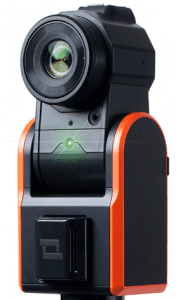 1. Soloshot
Soloshot was actually the first automated soccer camera we tried about nine years ago. We loved the idea, but it wasn’t ready for prime time for our team. Fast forward to today, and the Soloshot 3 has definitely made some improvements.
Recording Media
Soloshot records directly onto an SD card, making it easy to manage your footage. A huge perk of using external media like SD cards is that if one fills up during a tournament, you can simply swap in another card and keep recording.
How to Access Video
Accessing your footage is simple: remove the SD card from the camera and copy the files to your laptop. Unlike subscription-based models, you’re in charge of managing and sharing your recordings.
Tip: Since Soloshot doesn’t have built-in AI, the tracking relies entirely on the GPS tags worn by players. While this ensures precise tracking, it also means you might end up recording the bench if your player is subbed out—another reason we invested in multiple tags for different players.
Where to Store Video
Once you’ve transferred your files, you can store them on a cloud service like Google Drive or Dropbox, or use an external hard drive for backups. For sharing, YouTube and Vimeo are both great platforms.
Since the Soloshot system doesn’t include subscription-based storage, you’ll need to organize and manage your footage.
Charging the Camera
The Soloshot’s all-in-one design makes charging easy. Just plug the camera in with the battery attached. For parents recording multiple games in a day, extra batteries can be a lifesaver. These are available for purchase directly from Soloshot’s website.
Start Recording

Soloshot will give you a price break if you’ll order for delivery a month or two down the road. I’m guessing to help manage inventory. One option is “Ships Now” and the other option is “Wait a little, Save a Lot”, which saves about 15%. So you might save money if you order early before you need to record.
Here’s a look at the Soloshot in action – Soloshot-Player Tracking
2. Pix4Team
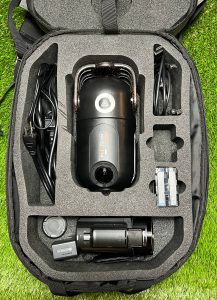 2. Pix4Team
Recording Media
The Pix4Team relies on an external camcorder for recording, so the media will depend on the camera you use. It also has an SD slot in the robot itself that you can record to. You’ll want to make sure the SD card has enough space to store at least one game, with 128GB being a safe choice for high-resolution recordings.
I ended up going with a SanDisk – Extreme PRO because of the faster write speed, also because the Extreme Pro come in bigger sizes. I haven’t had a chance to test one recording using a SanDisk Extreme Pro and then another with a SanDisk Ultra to see if I can tell a difference.
The camcorder I bought was a 4K camera so I thought having a higher write speed could help. Here are the approximate write speeds for the different SD card models:
– SanDisk Extreme PRO: up to 90 MB/s
– SanDisk Extreme: up to 70 MB/s
– SanDisk Ultra Plus: up to 62 MB/s
– SanDisk Ultra: up to 51 MB/s
How to Access Video
You can watch your footage immediately after the game. With an HDMI cable you can connect your camcorder to a screen or you can use an SD card reader to plug it into your laptop and watch it there. It’s usually a good idea to copy it to you laptop first since reading it off the SD card can be a little choppy. The Extreme/Extreme Pro also have faster read speeds that can make a difference there.
Where to Store Video
Once you’ve transferred the video, you’ll need to store it on your computer, external drive, or cloud storage service. The footage isn’t automatically hosted or backed up, so you’ll need to manage storage and distribution manually. One thing that can happen if you don’t copy each match after the game is that your SD card can fill up, so it’s important to stay on top of it. Having an extra SD card or two in your bag can help avoid storage issues during back-to-back games or if you get too busy to copy one off.
Charging the Camera
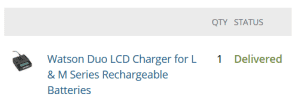 The Pix4Team system requires two separate devices to be charged: the robot and the camcorder. Make sure both batteries are charged up before heading to the game. A low battery on either one can ruin your recording experience.
Depending on the camcorder, you may also need a spare battery for extended recording sessions. The robot’s battery is charged while on the robot but you can also buy a separate charger. Since I had two batteries to charge at once I ended up getting this Watson Duo LCD Charger for L & M Series Rechargeable Batteries and charging them off the robot.
Start Recording
Make sure you also 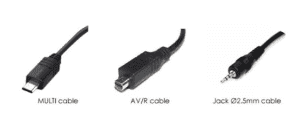 add the cables to the cart when you order the Pix4Team. You’ll need those to connect your camcorder to the robot. I made the mistake of not ordering them and had to go back and buy them separately. you order early before you need to record. You can buy a camcorder through them but I ordered mine separately to save a little money. Make sure you check their site for a list of supported cameras. You can usually save a little money on the camera if you use this Pix4Team discount when you order.
3. XBot Go Chameleon
 3. XBot Go Chameleon
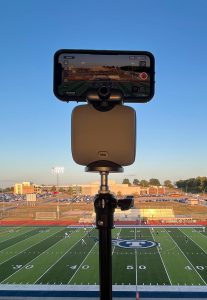
Unlike the first two in the list the XBot Chameleon doesn’t use an SD Card so the recorded footage is easier to access and share right away. It’s still relatively new so the jury is out on the tracking capabilities but it’s likely to improve over time.
Recording Media
The Chameleon uses the camera in your smartphone as the recording device and saves the footage to your device storage. It does split the game into 30 minute chunks as you record. The footage is accessible in the XBot app and you can also export it to your camera storage.
The Xbot Chameleon is compatible with newer iPhones and some Android devices (check their website for a list of supported models).
How to Access Video
The video of your game is available immediately after recording in the XBot app. The app has a playback slider that lets you jump through the footage. As I mentioned, it does split the game recording into 30 minute sections so if you’re looking for a moment in a 90 minute game you may need to jump between sections.
The app does include a simple editing tool that lets you create clips by setting start/end points in the footage. You can download those clips to the Photo library of your phone as well.
Where to Store Video
It is nice that the game/clips can be stored right on your phone but after a while the big video files start to add up. If you have a Google photos, Google drive, or Dropbox app on your phone you could upload them there before removing them to free up storage space on your phone. Or if you have the YouTube app you could upload the games there as well. If you don’t want the whole world to see you can make the videos private.
Charging the Camera
As with the Pix4Team, you’ll need to charge up both the camera (your phone) and also the robot it sits on top of. If either one are dead or die partway through the game that will end your ability to record.
As I mention in my XBot review it’s not a bad idea to get an extra phone that you use just to record. In everyday use your primary phone draws down the battery so when you get to the game it could be low. Another option is to get this portable camera battery so you can charge both your phone and the XBot Chamelon. You charge the XBot Go with a standard USB-C charger, that battery pack has 2 USB-C ports so you could charge your phone and the robot at the same time.
Start Recording
One nice thing about the XBot Chameleon is that it’s cheaper than the first two cameras on the list. That’s mostly because it doesn’t include the camera that does the recording, which is your phone. Another nice thing about this one is that it ships pretty quickly, probably faster than all the others in this list. If you want to try one out you can get the XBot Chameleon here.
4. ActionStitch
 4. ActionStitch
The ActionStitch is a cool idea, although the one on this list I’ve had the least experience with. Technically it does come with a “plan” since you need to buy a license for the software but it’s very affordable and it’s a one time purchase, so not a recurring subscription.
Recording Media
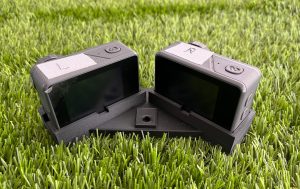
The main component of ActionStitch is the software that tracks and follows the ball. They don’t sell you the hardware, you buy two GoPro like cameras and put them into a 3d printed mount to record.
Each of the cameras has an SD card, after you record you need to copy the video from the SD card onto a hard drive. The list of cameras that are compatible with ActionStitch is listed on their website.
How to Access Video
As I mentioned there is a license required to use the ActionStitch software. Once you have it installed on your computer and you’ve copied the files from the SD card to your hard drive then you can use the software to process the game. It both splices the left and right camera recordings but also follows the ball so it can pan and zoom digitally.
Once it’s finished running you’ll get a final video file that you can watch and share.
Where to Store the Video
Once you download the game after ActionStitch creates the footage you’re in the same boat as Pix4Team or Soloshot. It’s up to you to figure out how to manage and store the game files. It’s a good idea to create a folder structure like Player/Sport/Season/Team and store the videos underneath. Whether its on the cloud or on an external hard drive. Another option is publishing them to Vimeo or YouTube.
Charging the Camera
Whichever set of cameras you buy to use with ActionStitch just make sure you save the battery charger. You’ll charge them up outside the camera before use and then slide the batteries back into the camera when it’s game time. If you have a few games in a row you can buy an extra set of batteries to extend the recording life.
Start Recording
As I mentioned, you don’t buy the hardware from ActionStitch. So to prepare in advance you can order the cameras from somewhere like Best Buy or Amazon. I started out with a pair of these GAMSOD 4K60fps cameras. I could have used the GoPro Hero but they were a lot more expensive so I went with the GAMSOD. You’ll also need to order a set of SD cards, one for each camera.
For the mount, they have a 3d model you can download as an stl file and upload to CraftCloud. This is what I chose for my camera mount:
- Material — Carbon Fiber PLA (FDM)
- Finish — Standard (60% infill)
- Color — Black
 Material — Carbon Fiber PLA (FDM)
The model shows in red but you can choose your color. CraftCloud will print it and ship the tripod mount to you.
Lastly, you need to buy the license from ActionStitch and install the software on your desktop or laptop.
5. Camera-Pan
Last but not least, this camera was developed in England for teams looking for a recording option without a subscription. I used the original version looks like they’re coming out with a new version.
Recording Media
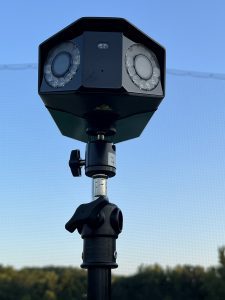
The camera used in the Camera-Pan system is a Power Over Ethernet camera that has 180 view and has a 16 MP resolution. It has a slot on the bottom where you insert/extract the SD card that it stores the video onto. As with the other cameras that use an SD card, it’s nice to have extra cards in case you run out of space.
How to Access the Video
The Camera-Pan system is unique in how it uses AI. While some of the others are using AI in the camera/robot this system doesn’t rely on AI until after the recording.
You insert the SD card from your camera into an SD card reader and plug that into the USB port on a special “streaming machine”. This is created by Camera-Pan and has the logic that does the splicing/panning/zooming. Once it’s complete you have a video file for your game.
Where to Store Video
One of the downsides of cameras without a subscription is that they don’t offer a place to store/host/share your videos. You save money but you’ll have to figure out the right place for your team.
As I’ve mentioned several of the cloud services have been good for me like Google Drive (Google Photo), Vimeo, YouTube. These let you put your games where others can see and also lets you backup the footage at the same time.
Charging the Camera
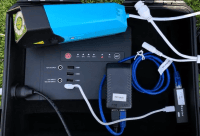
As I mentioned above, this is a PoE camera, which means you get both power and data to the camera through one Ethernet cable. In other words, you don’t need a charging cord.
Even though you don’t need to charge the camera, you do need to charge the battery that’s built into the case, shown in the image. Your Ethernet cable plugs into the side of the case, you run it up the tripod, and into the camera.
When I used it I kept the case open because I could hear the fan in the battery pack going, probably gets hotter faster when the case is closed up. The “render” machine needs its own power cord, it doesn’t hold a charge, it needs to be plugged in the whole time you’re using it to process the game.
Start Recording
I ordered the Camera-Pan when it first came out and it shipped pretty quickly even though it came from the UK. Now when I go to the site it looks like there is a pre-sale for the latest version going on. So I don’t think you can get a version 1 now and the version 2 doesn’t look like it’s shipping yet. Looks like you’ll have to wait a bit to try Camera-Pan. You can pre-order one but I don’t see when they’re scheduled to ship.
Soccer Cameras With No Subscriptions
If you’re looking to record your games without a monthly fee one of these cameras could be a good fit. There are definitely trade-offs between these cameras and the cameras that have monthly subscription costs. You can read more about these in our best soccer cameras overview where we look at the “all in one” systems vs the “bring your own camera” systems.
If your team is on a budget (which I guess we all are given youth sports fees) and you don’t want the monthly cost of a soccer camera subscription then these cameras can help you record your game for less money. I do hear from teams asking about cameras without hidden costs or fees. I don’t think the “all in one systems” fees are hidden, they simply provide multiple services (like analytics, livestreaming, hosting, etc) that have a cost. If you’re looking for an ai camera that just records and doesn’t have these extra services and the related costs you can use one of the camera systems above to capture video of your matches.
If there are other soccer cameras with no subscription that I missed please let me know and I’ll update the list, ben@easysportsvideo.com
If you’d like updates on soccer cameras when new ones come out or have new features let me know below which email address to send them to:


Leave A Comment